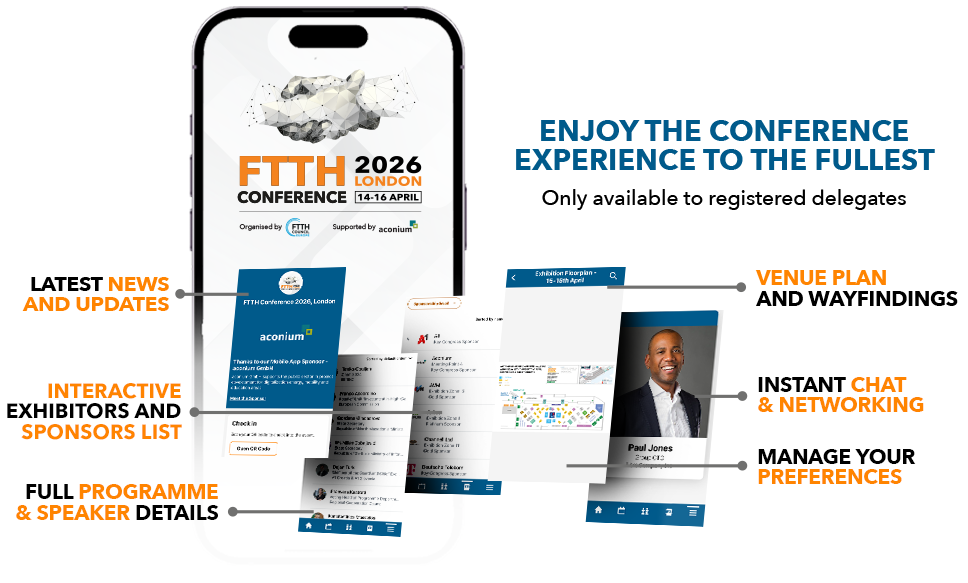
Privacy and profile settings
For the best networking experience, all attendees are visible to other conference visitors by default. If you wish to change your visibility setting, you can easily do so via your account settings, but remember: only visible attendees can send and receive messages! We would therefore encourage you to remain ‘visible’ so that you can get the most out of the app. The FTTH Conference is a highly trusted B2B conference and visibility allows you and other delegates to communicate efficiently with one another.
Instructions to select your privacy and profile settings:
- From the bottom of the screen, select the ‘Profile’ button
- Then select the red ‘View profile’ button immediately below your name
- Select the ‘pencil’ icon to the right of Attendee Details to edit your profile
- You can now add your photo and then immediately below ‘Add photo’ you will see ‘Visibility Settings’
- You can toggle between Visible and Hidden
- Now select the ‘Save’ button top right of the screen
While you are in the Profile section, please do also add a photo of yourself and a headline to quickly introduce yourself!
Attendee
Access the attendee section of the APP to start networking. This feature is available to all users and allows you to connect with other registered delegates of the FTTH Conference. For the best networking experience, it is important that you make yourself ‘visible’ to all other attendees via your account settings. By default, we have set your profile to ‘visible’ so you do not need to adjust anything . Remember: you can only connect with those people who are ‘visible’! The attendee feature allows you to search the person you want to reach out to via different criterias: name, job title, company name and more. Simply select the delegate you wish to connect with and send your first message, as simple as a WhatsApp!
Delegate Badge Scanning
Newly introduced for the FTTH Conference 2026, our new Delegate Badge Scanning feature lets you connect with fellow participants in only a few seconds.
Each delegate badge includes a unique QR code. Simply open the QR scanner in the Event App, scan the badge of the person you’re meeting, and their contact details will be instantly saved to your profile’s contacts section in the app. No business cards, no manual typing—just seamless digital connection.
This new feature is designed to support advanced networking throughout the event. Whether you’re meeting potential partners, industry leaders, or future collaborators, you can quickly capture and organize your new connections in one place.
How it works:
- Open the QR Code Scanner in the Event App
- Scan the QR code on a delegate’s badge
- Their contact information is automatically saved to your profile
To access your QR Code
Once you have logged into the app, you should select the ‘Profile’ button on the bottom menu. You will then see the ‘Check in’ button toward the top part of the screen below the ‘View Profile’ button. Selecting this button reveals the QR Code.
Selecting workshop and conference sessions
It would help us enormously if you could select the ‘Schedule’ button at the bottom of the screen and select (using the + sign) all the workshops, conference sessions and keynotes you would like to attend. Don’t worry if you change your mind later, you are not committed to attending any of the workshops and sessions you select but it does give us a good idea for our logistical planning!
By adding sessions to your agenda, you will be able to provide your feedback to the contents of discussion right after its end.
Navigating the venue
Finding your way at ExCel London will not be an issue, thanks to detailed floorplan and wayfinding plans of the FTTH Conference 2026 venue on the palm of your hand!
Please respect the privacy of other delegates
If you Direct Message someone or send out an Appointment and don't receive a reply, please assume that they may not wish to reply - do not keep on sending Direct Messages or further Appointments.
If we receive reports of spamming, FTTH Council Europe reserves the right to delete the offending delegate from the Mobile App.